Meet the FlashFilm Academy App: Build the Strategy. Plan the Work. Run Your Creative Business.
· Ty Turner
You know FlashFilmAcademy.com for creative education. Meet the member app that helps you put that knowledge to work—from the first client conversation to the shoot and delivery.
A business asks you to create content. Before you quote a video package, there are bigger questions to answer: Who is the business trying to reach? What is it selling? What questions stop people from buying? What should the content help the viewer do next?
The FlashFilm Academy app gives you a workspace for those decisions, alongside the tools to plan, price and organize the job. It brings client strategy, content research, production planning, pricing, proposals, project management, courses and community together across Home, Community, Tools and Client Portal.
Use it in a web browser on your phone, tablet or desktop. Start with the client’s business goal, turn that into a useful content plan, and keep the work organized as the project develops.
Testing is currently available to active FlashFilmAcademy.com members. App Alpha & Beta Feedback contains the app link, access instructions and the place to share feedback.
EXPLORE THE APP THROUGH APP ALPHA & BETA FEEDBACK
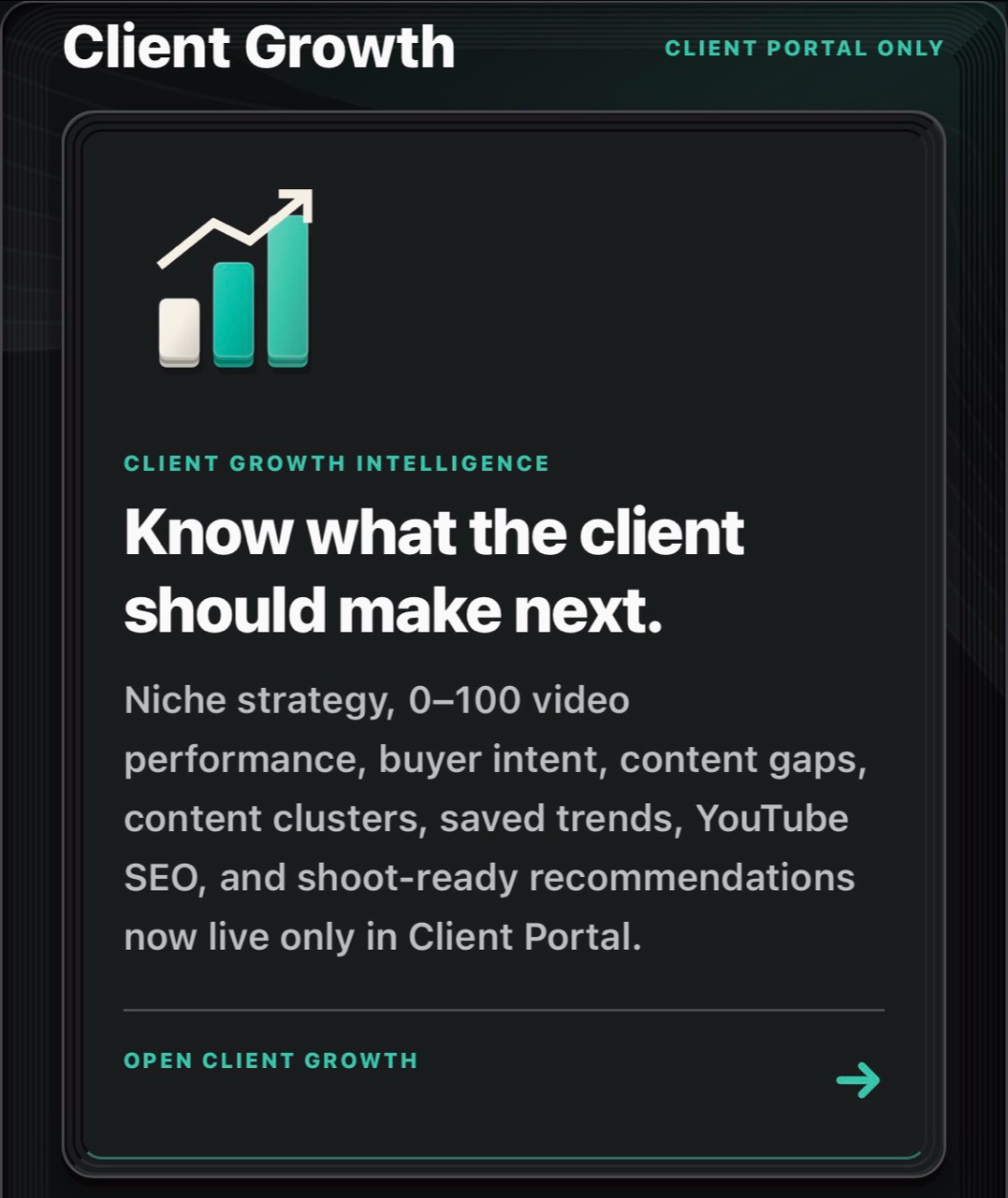
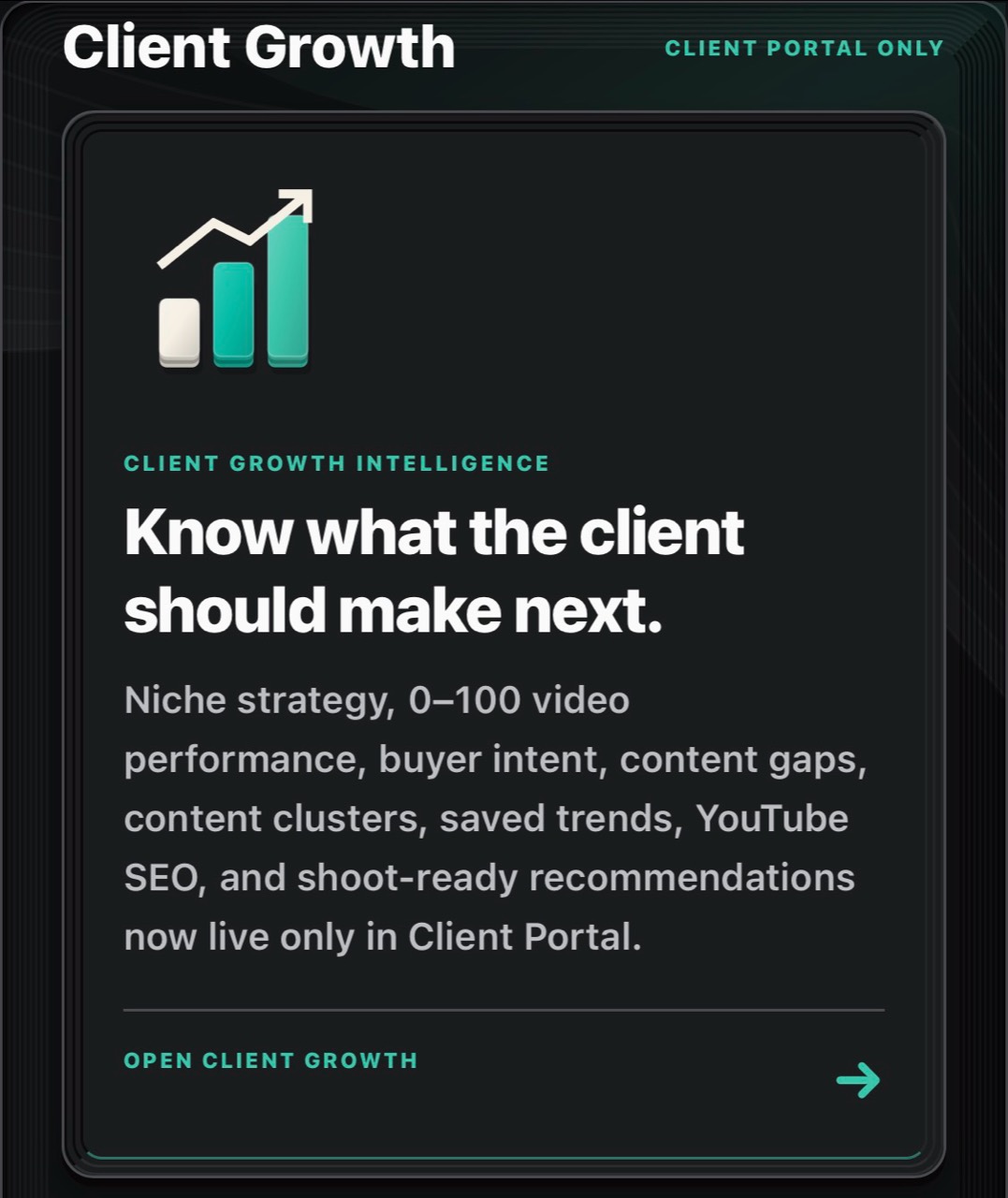
Start with client strategyConnect niche research, buyer intent, content gaps and shoot recommendations to the client’s business goal.
Help the client decide what to create—and why
Client strategy is a central part of the app. Build a strategy profile around the client’s niche, offer, ideal customer, market and business goal. Choose a goal such as awareness, leads, appointments, sales, recruiting, education or retention, so the conversation starts with a purpose.
Use Client Discovery + Strategy to work through customer problems, buying objections, proof, differentiation and the sales process. Those details help shape messaging and content themes that fit the client, rather than a generic list of video ideas.
The Content Strategy workspace connects that profile with public market signals to develop ranked content opportunities. Review the buyer intent, content gap, recommended format, intended business outcome and call to action. Explore suggested content pillars and a goal-based content mix, then open a brief to develop the idea further.
Client Growth Intelligence adds research around video performance, content clusters, short-form versus long-form patterns and YouTube SEO checks. These tools help you assess public evidence and prepare recommendations; their scores are directional research signals, not private audience data or a promise of client results. Available data sources are identified within the tools.
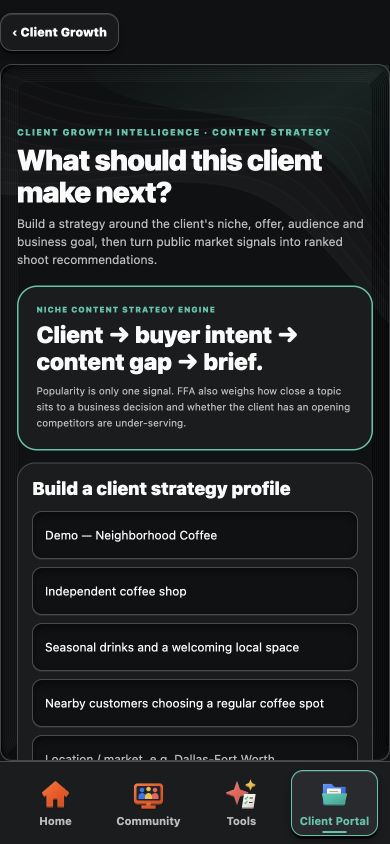
Start with the client’s business.The strategy workspace connects the client profile, buyer intent, content gap and brief. Demonstration inputs; no profile was saved or research run for this capture.
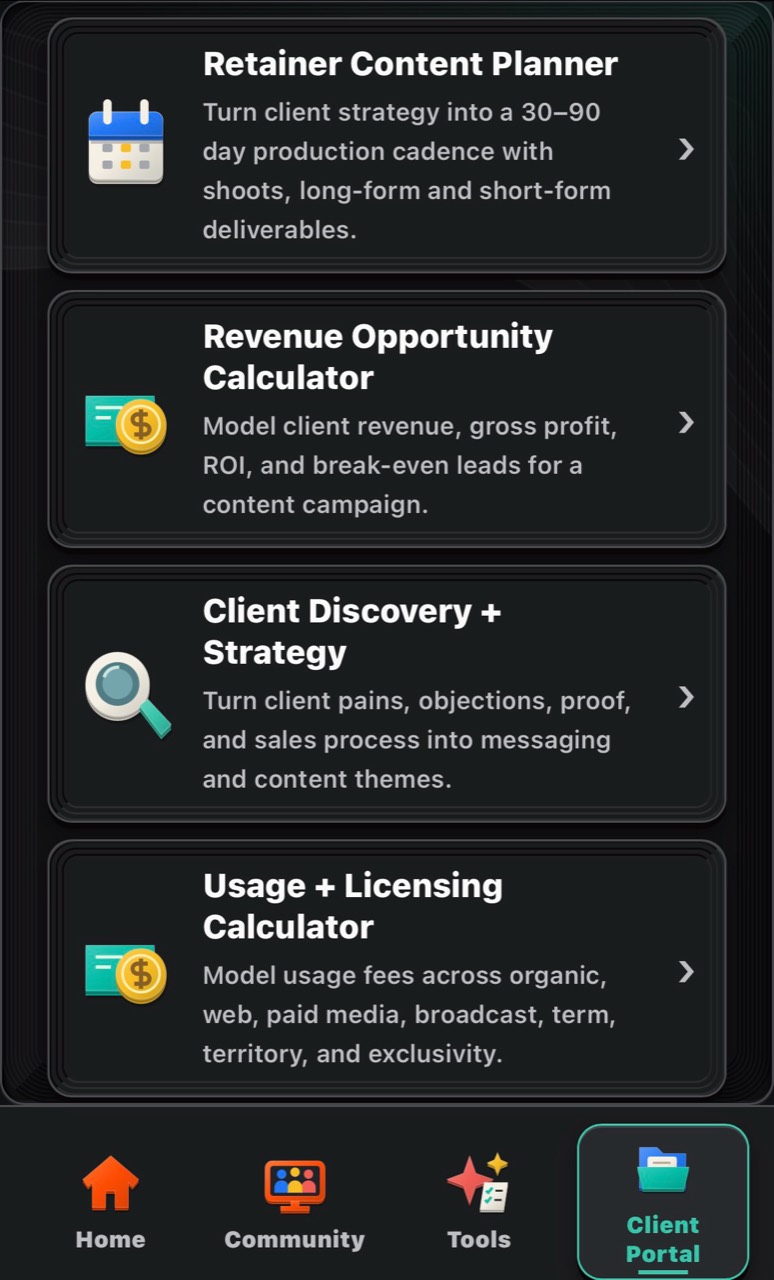
Build a commercially useful offerPlan retainer content, model revenue scenarios, develop client messaging and explore usage and licensing. Calculators use your assumptions, not guaranteed outcomes.
What that can look like in a client conversation
For a local coffee shop, begin with the offer, the people nearby and the reason they might visit. A goal such as bringing in first-time customers gives you a basis for exploring a seasonal-drink story, a barista introduction or an explanation of what makes the shop useful to the neighborhood.
For another business, the useful content may answer a buying objection, explain a service, show credible proof or help recruit staff. The aim is to present a reason for each piece of content, then connect that reason to the brief, scope, deliverables and price.
These are illustrative planning examples, not measured customer outcomes.
Research the opportunity before planning the content
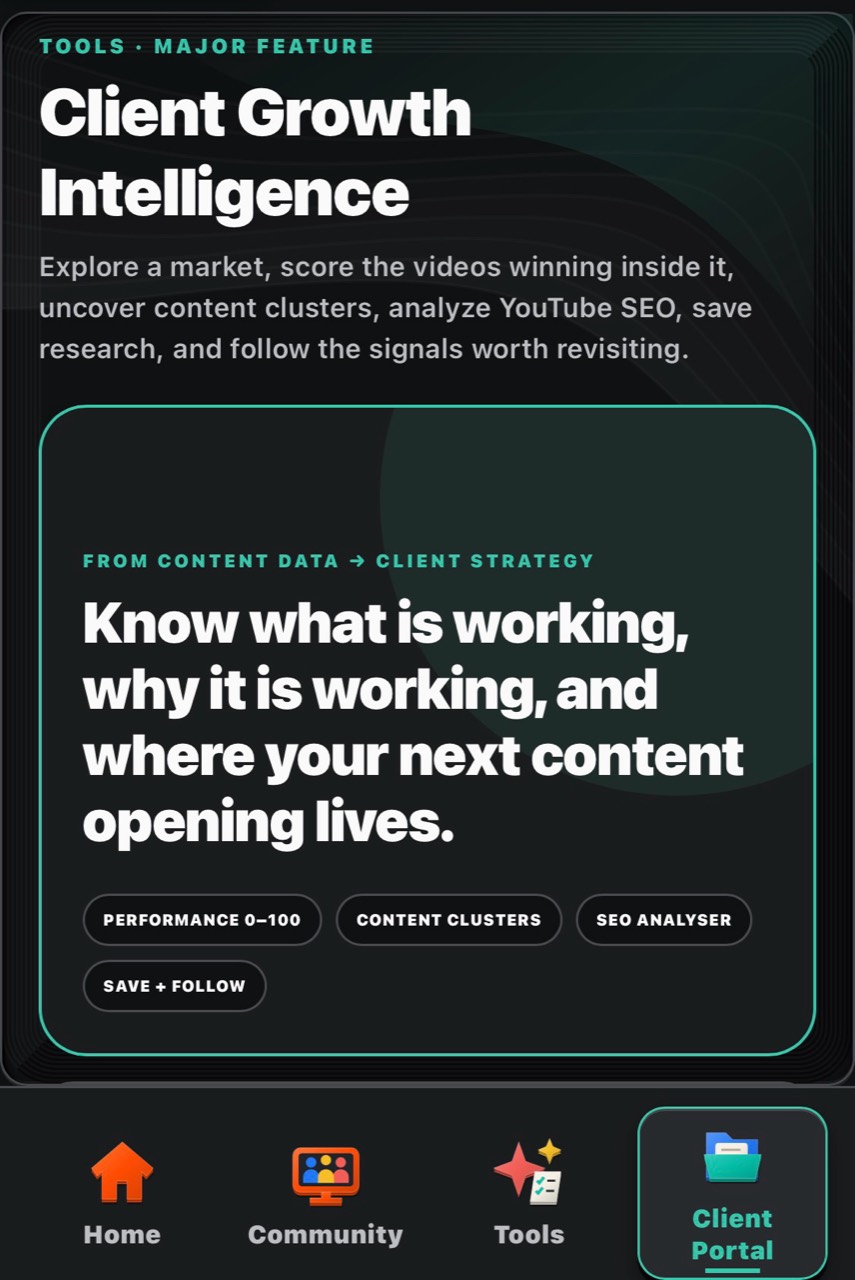
Client Growth IntelligenceExplore public market signals, content clusters, YouTube SEO and saved research.
Content Intelligence includes Trends, Competitors, Keywords, Plan and Video views. Explore public YouTube signals, compare two channels, identify recurring topics and formats, inspect videos and turn the research into an editable three-piece content brief.
Export that brief or save it into Content Planner with research notes and source links. My Radar helps you keep track of saved niches and competitors. Client Content Audit examines a public channel’s cadence, formats, engagement, calls to action and content gaps.
Country and language settings help narrow research using declared channel country and video language. Unknown or mismatched metadata is excluded, so some searches may return fewer results. Public view and engagement totals remain worldwide, and keyword counts describe the research sample rather than search volume.
See the research in context
The screenshots below show how an exploration surfaces a relative performance indicator, recurring topic clusters and a short-form/long-form comparison. Use the sample size, topic relevance and the underlying videos to decide what deserves a closer look. A higher score can highlight a research lead; it does not prove that the idea will work for a different client.
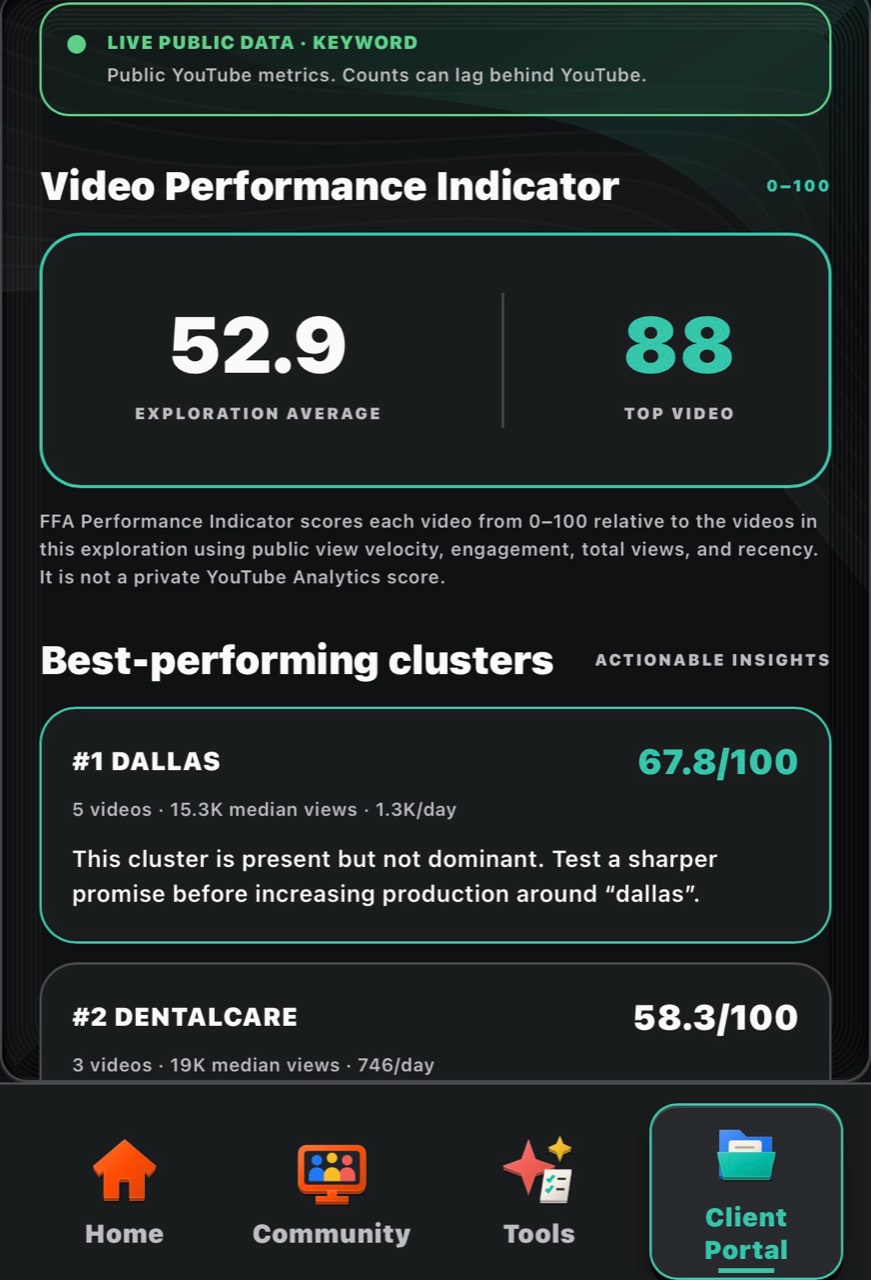
Performance indicators and topic clustersA 0–100 indicator relative to the videos in this exploration, using public signals. These are sample research results, not a private YouTube Analytics score or a promise of results.
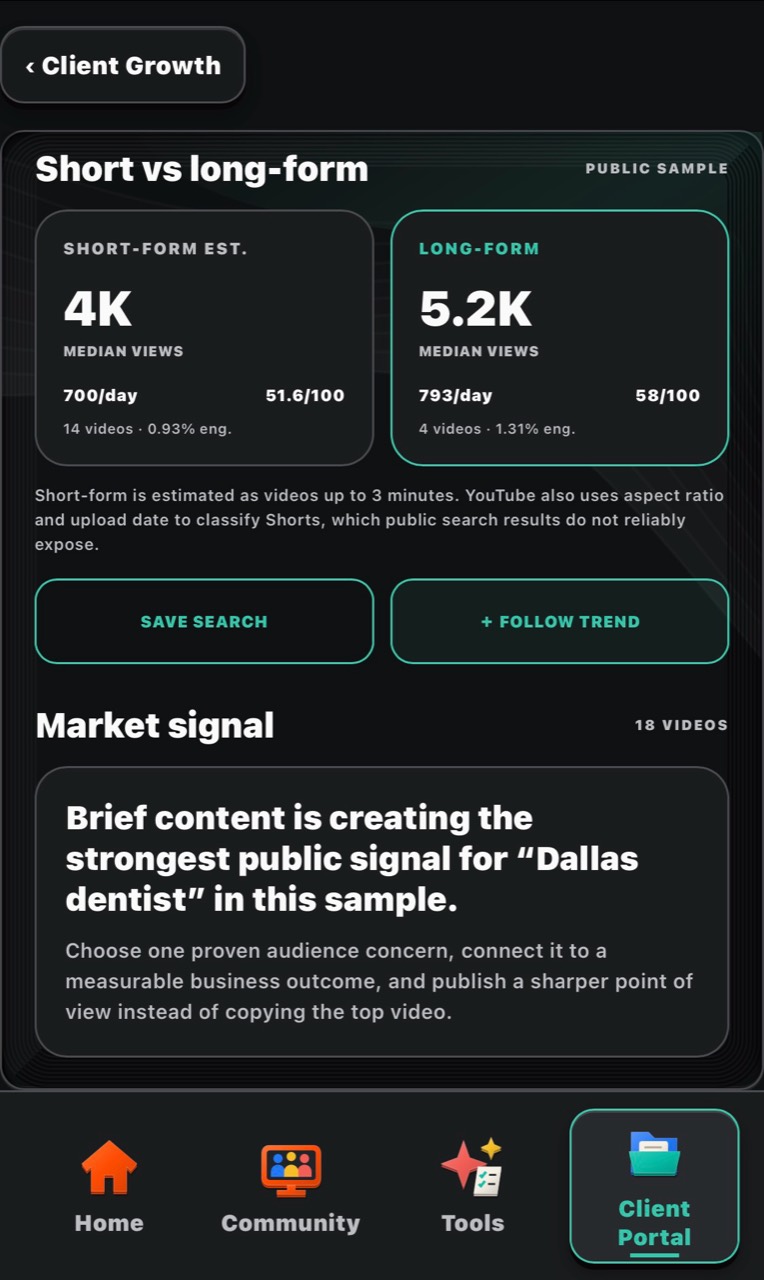
Compare content formatsReview the sampled short-form estimate, long-form figures and market signal before choosing what to test. The pictured exploration contains 18 videos; it is not a view of the whole market.
Turn the strategy into work you can produce
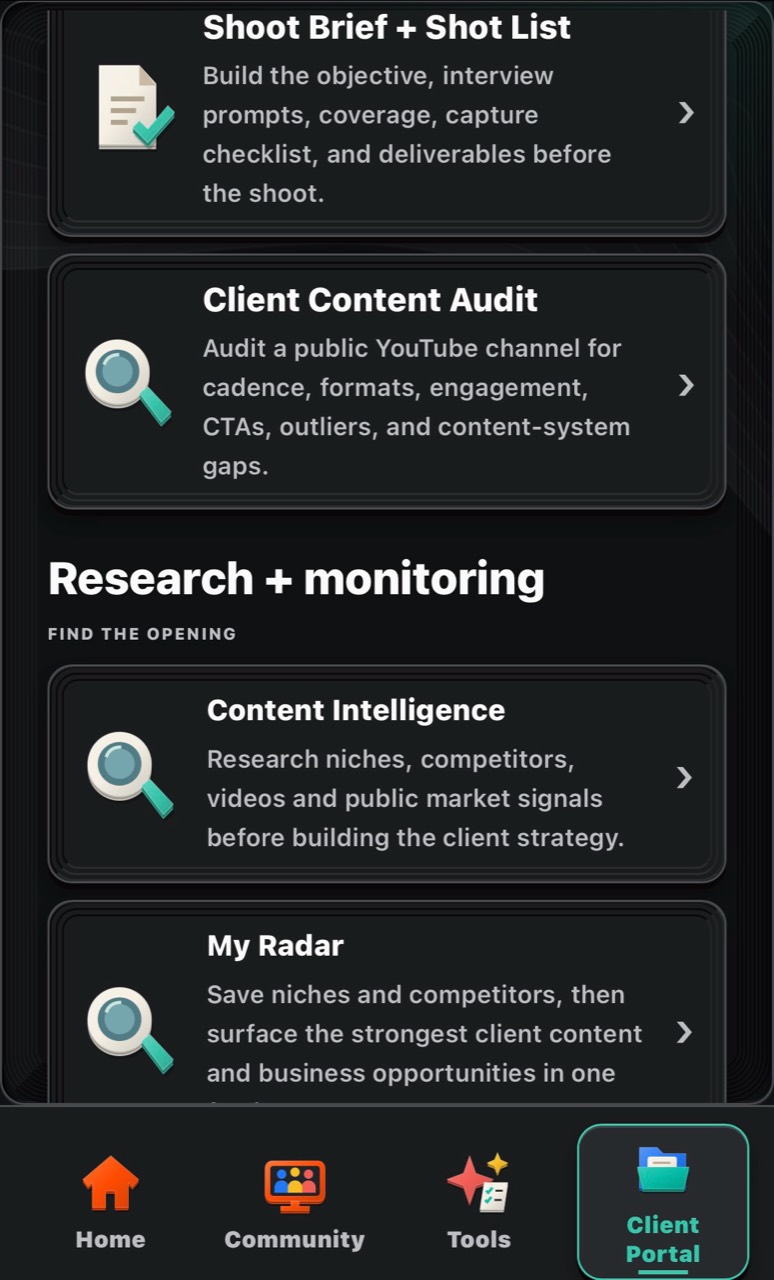
Research becomes a production planUse Shoot Brief + Shot List, Client Content Audit, Content Intelligence and My Radar to develop and revisit your recommendations.
• Content Planner: set a topic, audience, goal, platform, start date, posts per week, ideas and call to action. Build a dated outline and keep sources with it. Saving a plan does not schedule or publish content.
• Retainer Content Planner: map a 30–90 day production cadence with shoots and long-form and short-form deliverables.
• Client Discovery + Strategy: work through buyer problems, objections, proof and the sales process to develop clearer messaging and content themes.
• Shoot Brief + Shot List: prepare objectives, interview prompts, coverage, capture checklists and deliverables before the shoot.
• Workflow Templates: use checklists for discovery, shoot day, post-production, delivery and publishing. Mark completed steps, add custom tasks and keep production notes.
Supported workspaces can be saved, reopened, duplicated or archived, with revision history where available. Use the export options offered by each tool to take the results into your workflow.
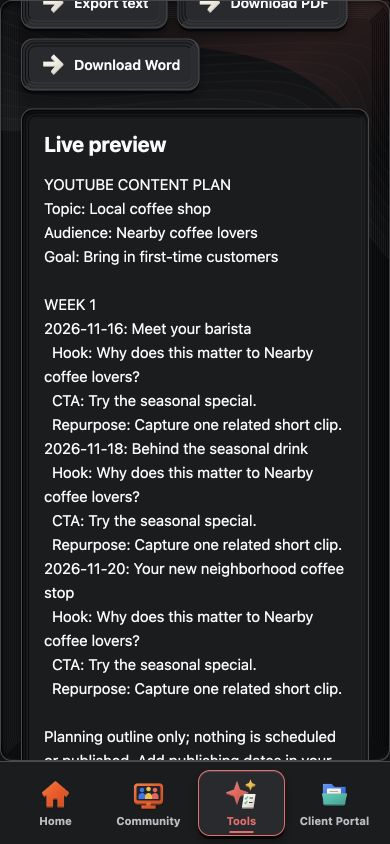
Content Planner in useA dated three-post coffee-shop plan with hooks, calls to action and repurposing prompts. Demo only; nothing scheduled.
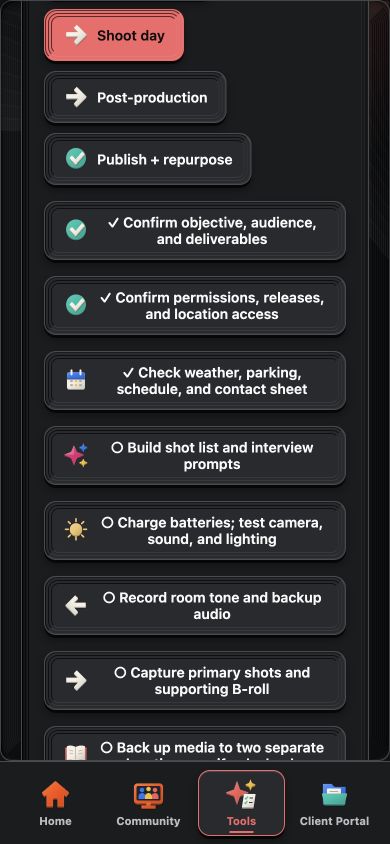
Shoot-day checklistMark preparation steps complete and add tasks for your own process.
Capture an inquiry and give it a clear next step
Create an inquiry form, copy its embed code onto your website and collect leads in your sales pipeline. New intake submissions automatically link to a project. You can also add a client manually and keep multiple projects, shoots and meetings organized around that client’s work.
Client Projects brings discovery notes, scope, deliverables, strategy, pricing, proposal handoff and production planning together. My Business stores your business name, logo, currency, tax and proposal defaults so you can reuse them.
Instead of rebuilding the same information for each stage, start with the inquiry and develop it into a clearer plan for the job.
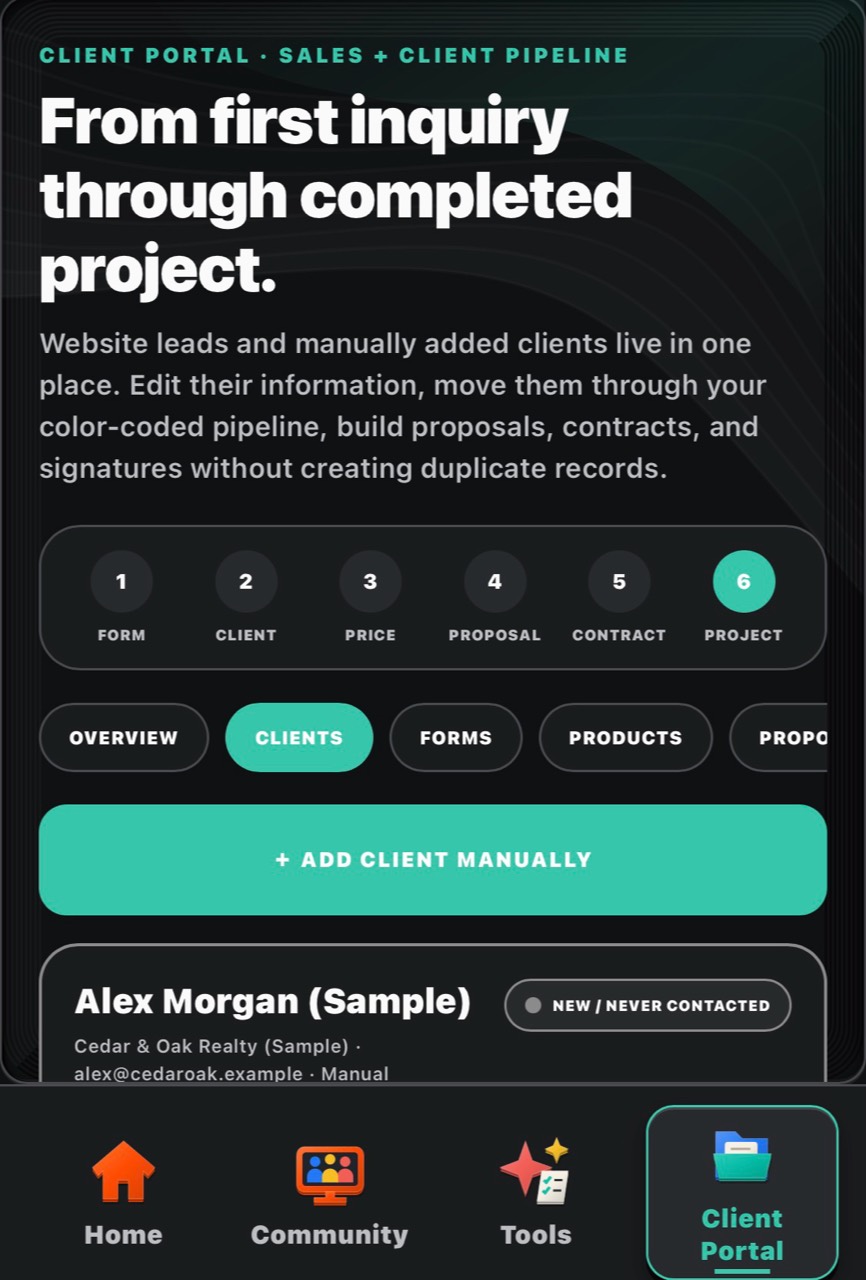
From inquiry to projectKeep lead details, stages, proposals, contracts and project work connected. Sample client shown.
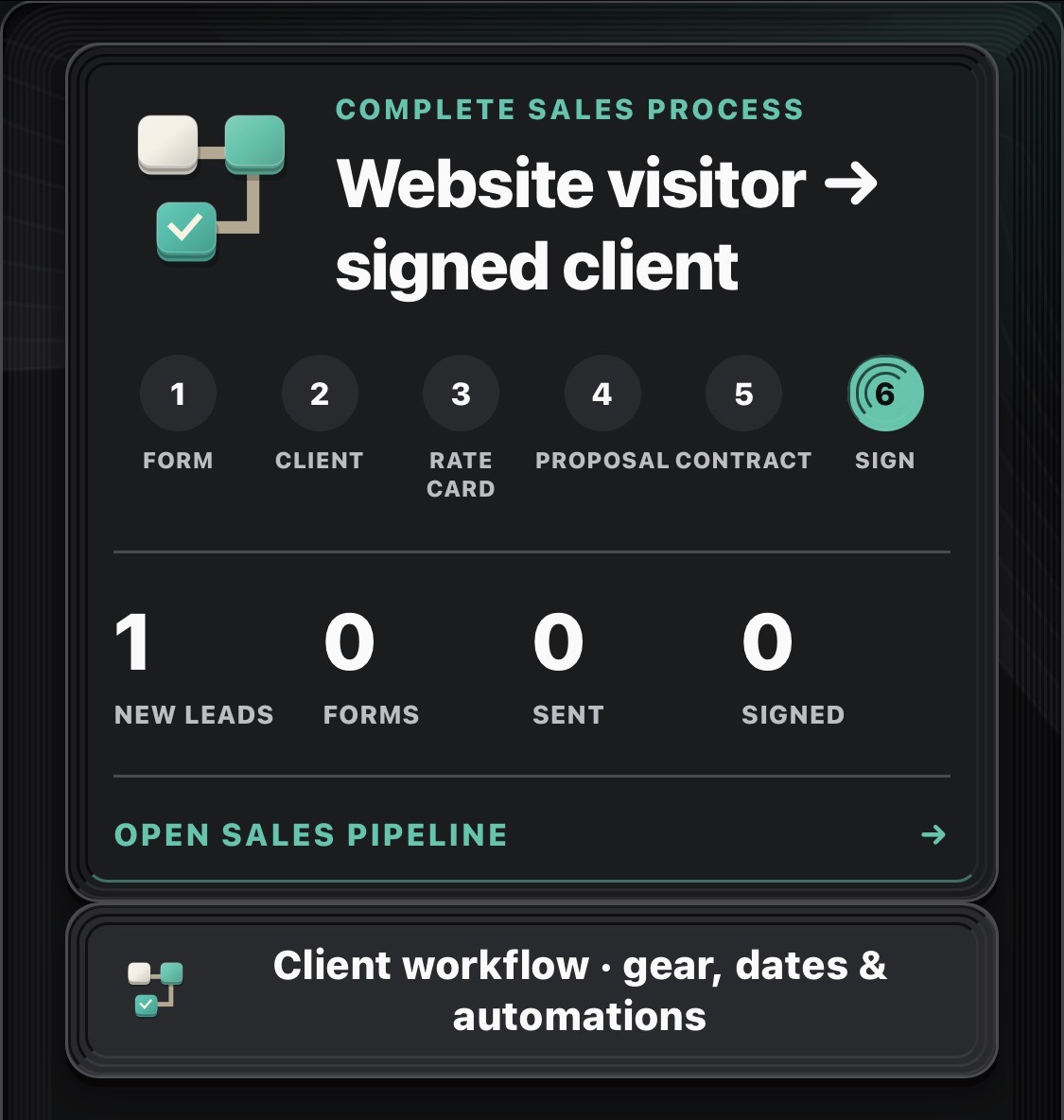
A connected client processWork from inquiry and rate card through proposal, contract and signature, with an entry to gear, dates and workflow setup.
Build pricing around the whole job
The Pricing Calculator takes hours per crew member, hourly costs, crew size, direct expenses, overhead, target profit margin and tax. Its live preview separates the costs and shows a suggested selling price based on your inputs.
Before You Quote helps you examine the inquiry and identify missing scope before preparing an estimate and proposal draft. Your Premade Price List stores reusable services with base, half-day, full-day or hourly rates and service-specific contract clauses.
Need to think beyond production costs? The Usage + Licensing Calculator models different media, usage terms, territories and exclusivity. The Revenue Opportunity Calculator explores client revenue, gross profit, ROI and break-even scenarios using your assumptions. These are planning tools—not guarantees of a financial result.
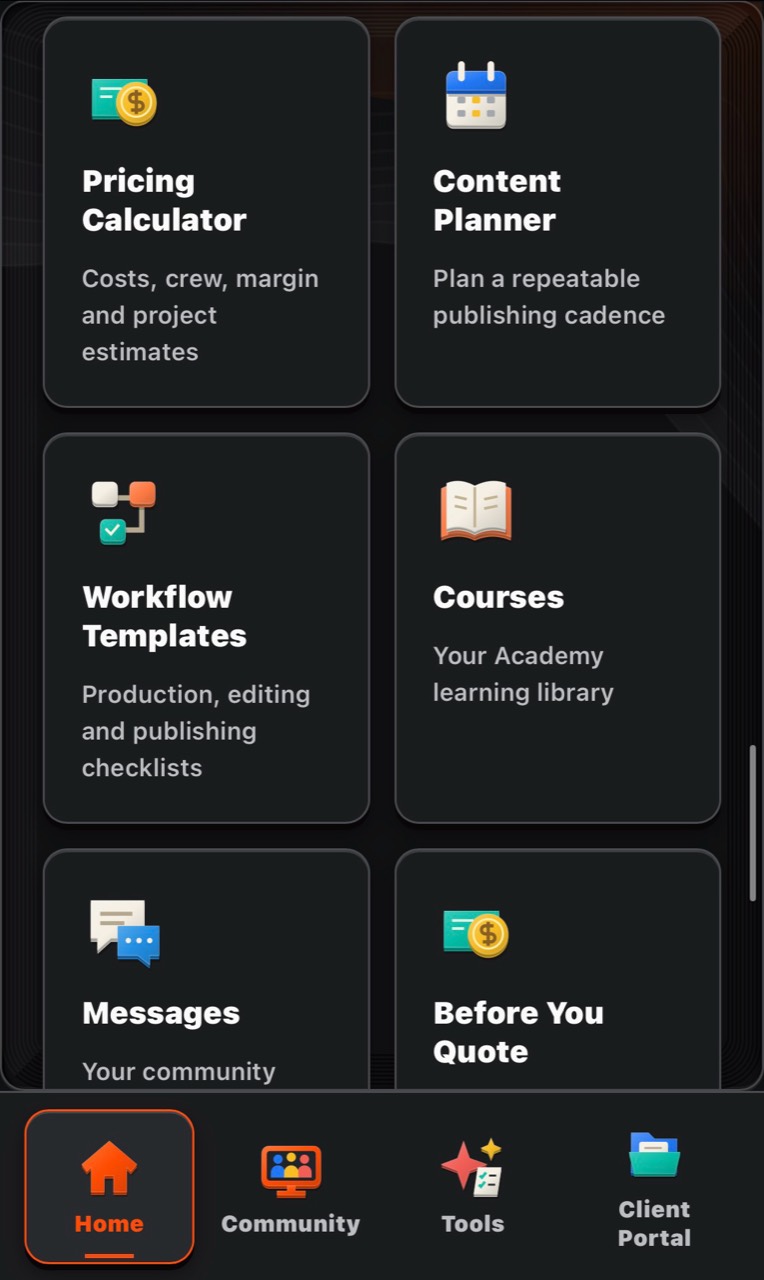
Tools you can revisitPricing, planning, workflow checklists and learning are available from the app catalog.
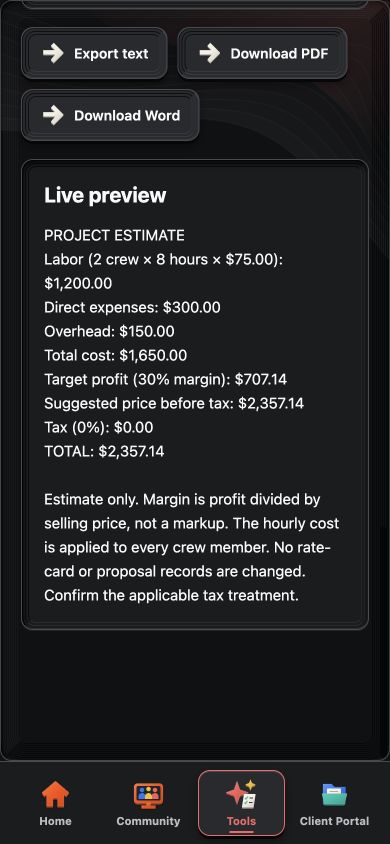
Pricing Calculator in useExample estimate: two crew members, eight hours and $300 in direct expenses. Not a recommended rate.
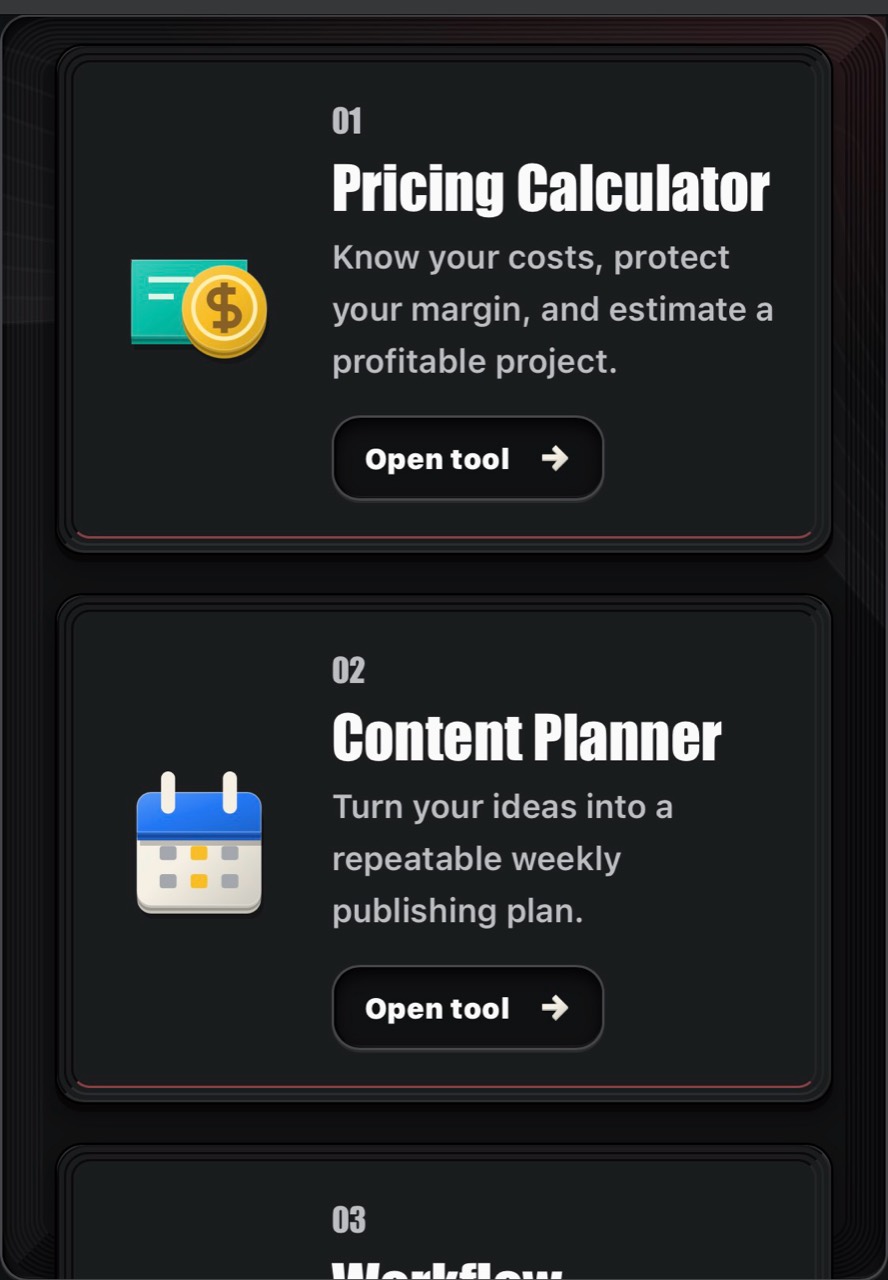
Pricing and content planningMove from estimating the job to planning a repeatable content cadence.
Move from a quote to a client-facing proposal
Build branded proposals and contracts using your selected services, project scope, crew and time. Share the document for review and signature, while keeping published and signed terms protected.
The Smart File workflow includes invoice schedules, payment links and relevant meeting or shoot details. Stripe hosted checkout and verified payment events require your own configured connection and webhook. A link from another payment processor can be included, but a pasted link does not automatically prove payment. This release does not automatically charge a client’s card.
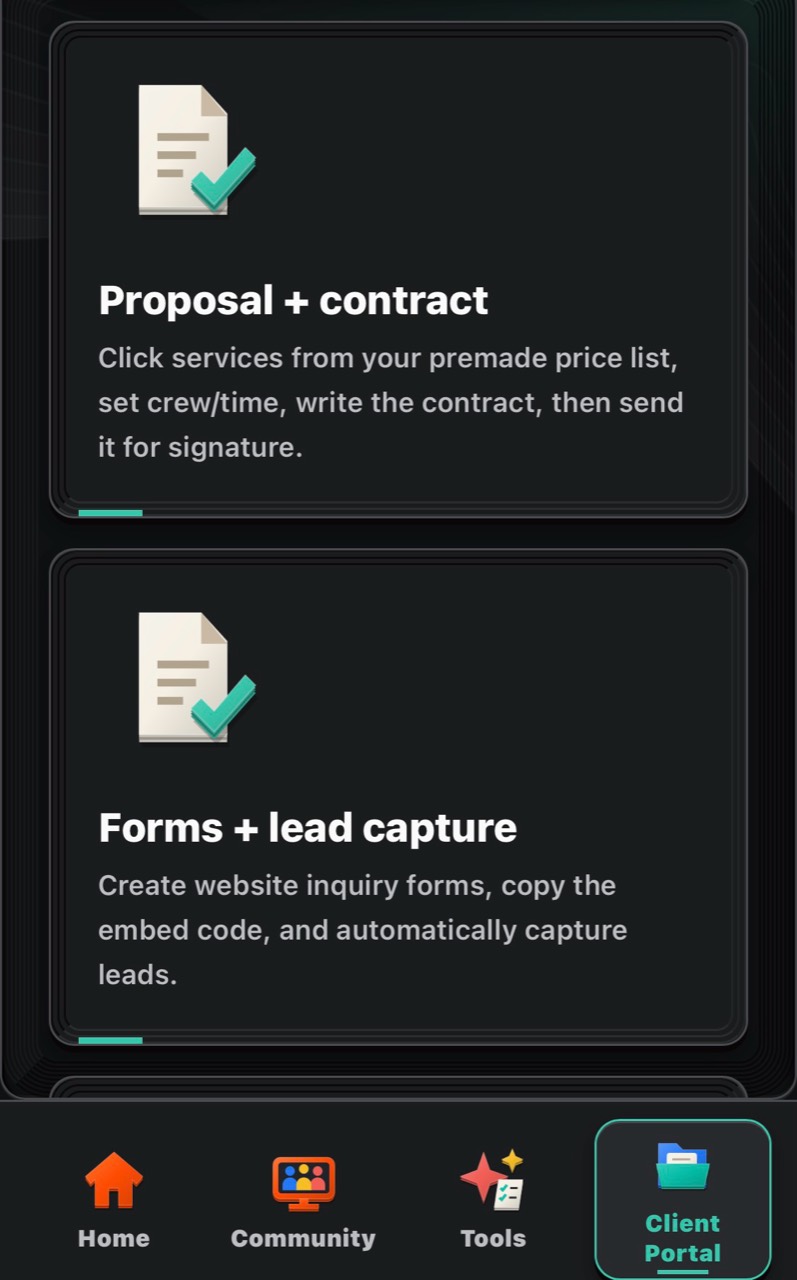
Proposals and lead captureCreate inquiry forms and prepare proposals and contracts using your saved services and project details.
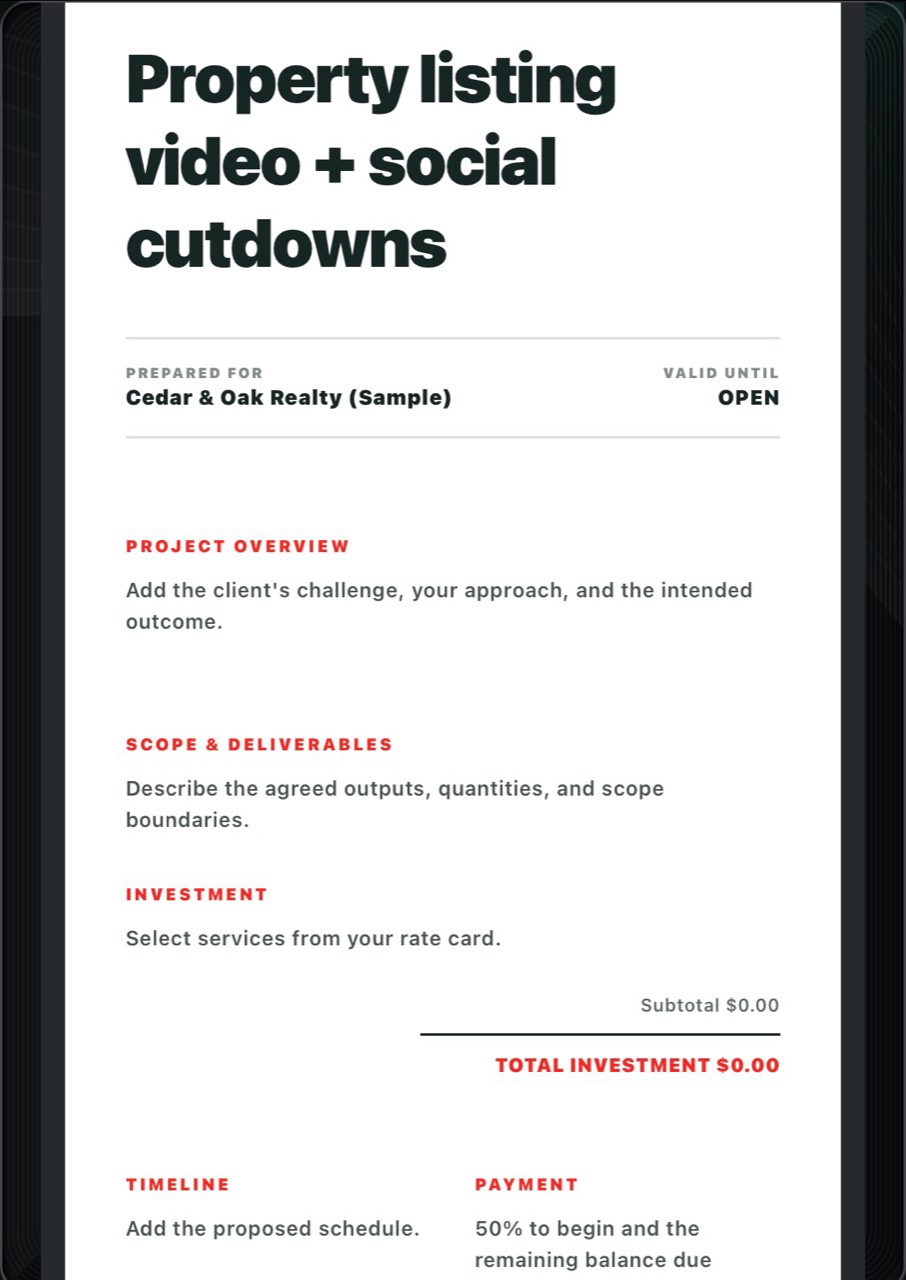
Client-facing proposal previewAn unfinished sample proposal showing where the overview, scope, investment, timeline and payment terms go. The $0 value is an unconfigured draft, not an advertised service price.
Connect the service to the gear you need
Build your equipment inventory with item names, models, quantities and cases or bags. Include cameras, batteries, memory cards, lenses, lights, stands, diffusers, audio equipment, gimbals and other items you use.
Assign equipment to the services on your price list. Shared gear uses the highest required quantity across selected services; additive gear is counted for each service unit. Each shoot receives its own editable packing snapshot, so later inventory changes do not silently rewrite an existing shoot’s list.
Organize items by case and check them off for departure and return. It is a practical way to connect what the client booked with what you need to prepare.
Plan the dates—and the preparation
Keep multiple shoots and meetings attached to a project. Shoot confirmation checks the signed contract, required verified payment, your approved date and availability. Booking conflicts are flagged for review; connected-calendar checks depend on a working calendar connection.
Set up to three preparation reminders. For example: charge batteries two days before, prepare memory cards one day before and pack on the morning of the shoot. Confirm your footage is backed up before formatting cards.
A separate packing reminder can run 5–90 minutes before the shoot ends, with 15 minutes as the default. Rescheduling or canceling a shoot updates its pending reminders. In-app workflow notifications and supported browser push are separate opt-in choices.
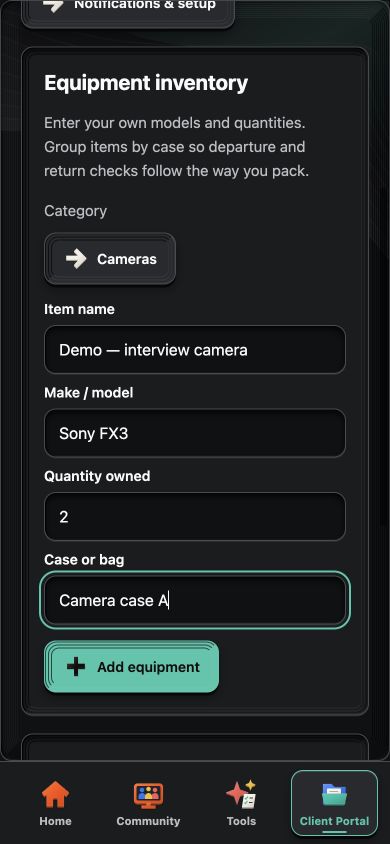
Equipment inventoryA demonstration entry with model, quantity and case. This entry was not saved.
Prepare a consistent follow-up process
The workflow includes configuration for up to three follow-up emails. Choose a trigger and delay, then customize the subject and message. Triggers include new inquiries, confirmed bookings or meetings, completed shoots and delivered work. Pause a project’s sequence or customize and cancel individual scheduled messages.
You can also create service-specific questionnaires, schedule them after booking or before a shoot and track responses. After delivery, a neutral review request can invite clients to share their experience through a review link. Payment reminders are separate from the three-email sequence.
Current availability: saving a draft sends nothing. Automated email delivery awaits Academy-side setup and a connected member mailbox. Reply detection is not active, so a sequence must be paused when a client responds. See the testing notes below before relying on connected services.
For communication you want to handle yourself, Email Drafts provides editable starting points for proposal follow-ups, past-client reactivation and outreach. Download your customized copy; that tool does not send the email or save edited templates to your account.
Bring AI into your work—with your own connection
The AI Prompt Builder helps you specify a role, task, audience, context, format and constraints. Connect a supported OpenAI, Claude or Gemini provider API account for drafting, brainstorming and review in supported tools and client workspaces.
Review generated material before using it with a client. Provider API usage is billed separately. Connecting AI does not automatically authorize your email, calendar or payment accounts.
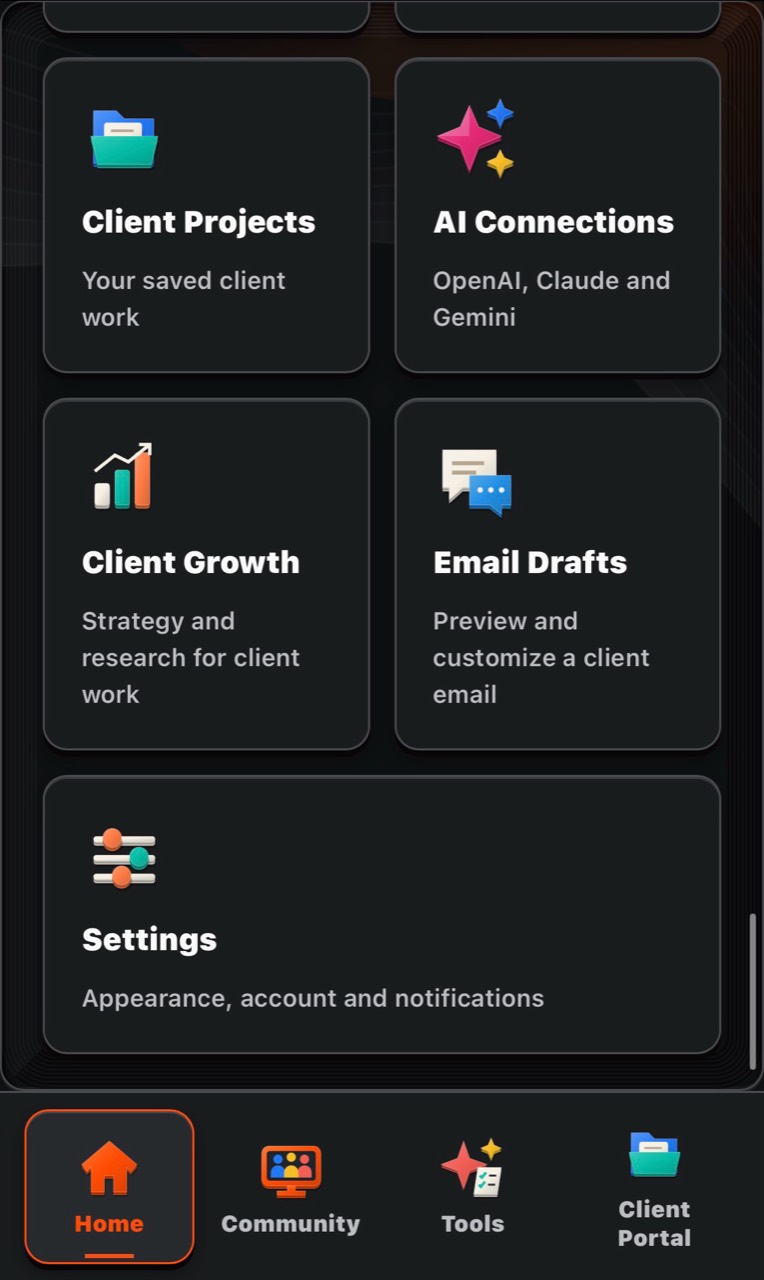
Saved work and AI connectionsRevisit client projects, access growth tools, customize email drafts and manage supported provider connections.
Your business at a glance
Open Home to see unread inquiries, open projects, documents awaiting signatures, upcoming dates, booking conflicts and workflow notifications. These are useful starting points: tap a number or card to open the relevant list.
The client pipeline uses compact colored stages progressing from red/orange toward green. Tap a stage to see its clients, or press and hold to reveal its name. Open-project cards show the project’s saved stage. Your searchable app catalog is also available from Home.
What this means for your day: you can check what needs attention before deciding whether to follow up, prepare a proposal or get ready for a shoot.
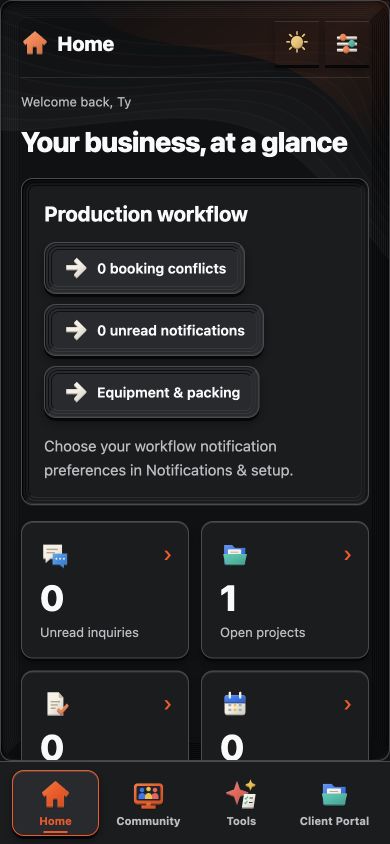
Home dashboardSee inquiries, projects, upcoming dates and workflow notifications in one place.
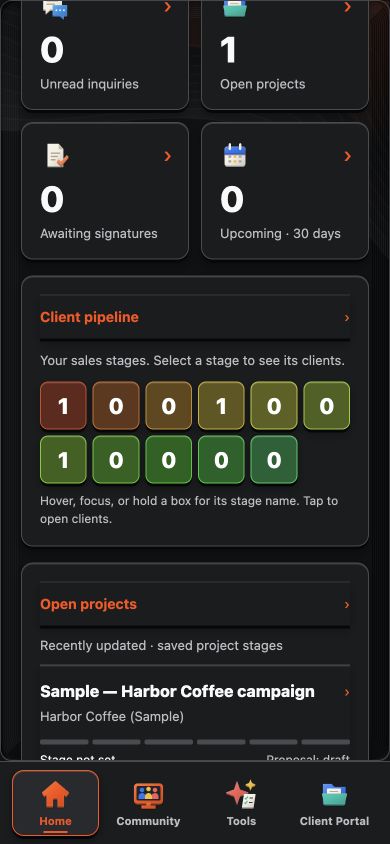
Client pipelineTap a colored stage to open its client list. Sample project shown.
Keep your Academy with you
Courses, challenges, community spaces, posts, comments and conversations remain part of the experience. Course cards use their space banners, and your existing membership determines what you can access.
Choose charcoal dark mode or gray light mode. Community uses orange, Tools coral red and Client Portal teal-green. English or Spanish navigation is available through the opening tour and Settings; community posts and courses retain their original language, and some longer explanations may still be English.
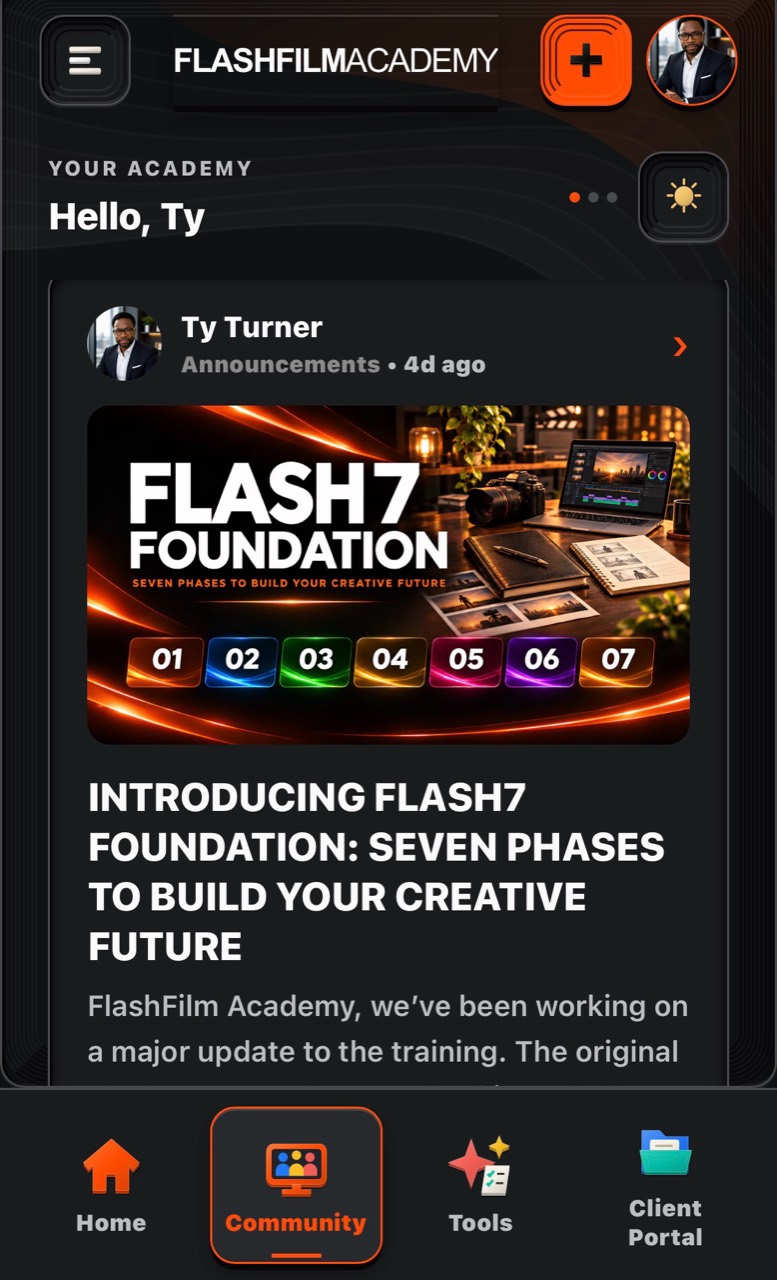
Community and learningYour community feed brings Academy announcements and learning into the app.
What the testing release includes
The core dashboard, business workspaces, tools, course access and workflow screens are live for alpha/beta use. Connected services have additional setup requirements:
• Google/Gmail and Microsoft/Outlook: Academy-side OAuth setup must be enabled before members can authorize these services. Automated email is not available until that and the member mailbox connection are complete.
• TidyCal: booking imports require your own supported API connection, with unmatched bookings reviewed.
• Stripe: checkout and payment verification require your own configured account connection and webhook.
• Calendar access: confirmed dates live in the app calendar. Apple Calendar uses calendar-file export; Calendly and other schedulers can provide a public booking link. These are not full two-way sync connections.
• Live delivery: email, payment, calendar and device-push flows still need account-specific acceptance testing. Start with sample data. Team availability and offline packing sync are not included.
This is the mobile-friendly web app, not an App Store or Google Play release. The walkthrough combines member-provided mobile screenshots with tool demonstrations. Research figures are snapshots of the pictured public sample; proposal and client examples are labeled where shown.
Active members: test it and tell us what would help
Testing is currently available to active FlashFilmAcademy.com members. Go to App Alpha & Beta Feedback for the app link and access instructions.
Try an estimate, a content plan, a sample inquiry, a project or an equipment list. Post your feedback and feature requests in that space. Tell us the task you are trying to accomplish, what worked, what was confusing and what a better result would look like.
For a bug, include your device/browser, the page or tool, the steps you took and what happened. Screenshots help—hide private client details and never share API keys. If you cannot enter the space, message us privately for an account check.
OPEN APP ALPHA & BETA FEEDBACK
FlashFilmAcademy.com is more than a place to watch courses. It is education, community and practical tools you can put to work in your creative business.
CREATE. ADAPT. EARN.
YOUR NEXT STEP · START FREE
Turn your creative skills into a clearer offer.
Join AI to Client, our free 5-day challenge for photographers and videographers. Work on your offer, research potential buyers and prepare a client conversation.
Start AI to Client freeEnter your email for a free community access invitation and Academy emails. Unsubscribe anytime. Already a member? Open this resource with your existing account.
Build on your first step with structured training and community. Explore Academy membership.
Join the conversation.
Read along, ask a question, or share your experience. Comments are open to active FlashFilm Academy members.
Loading comments…